The first part of the lab served as a reminder from last week’s lab, reinforcing how serial communication works between Arduino and P5.
I set up the potentiometers and switch on my breadboard. I set up the code in Arduino and P5.js respectively. First, I tested to make sure my inputs and code was working in Arduino.


Then, I got the analog mouse and circle appear/disappear button working in P5.js.
Designing a new physical interface
The second part of the lab took me more time. The lab suggested:
“What applications can you think of that could use a better physical interface for a mouse? A video editor that scrubs forward and back when you tilt a wand? An action game that reacts to how hard you hit a punching bag? An instructional presentation that speeds up if you shift in your chair too much? A music program driven by a custom musical instrument that you design?”
I spent a lot of time trying to think of a good and simple interface that could be made physical with Arduino. At first, I wanted to color a canvas using a FSR to measure how much water was present in a cup. This did not work because the FSRs only respond to the push of pressure, which does not change when water is poured into/drank out of a cup. For this to work, I would need a weight scale, which I do not have.
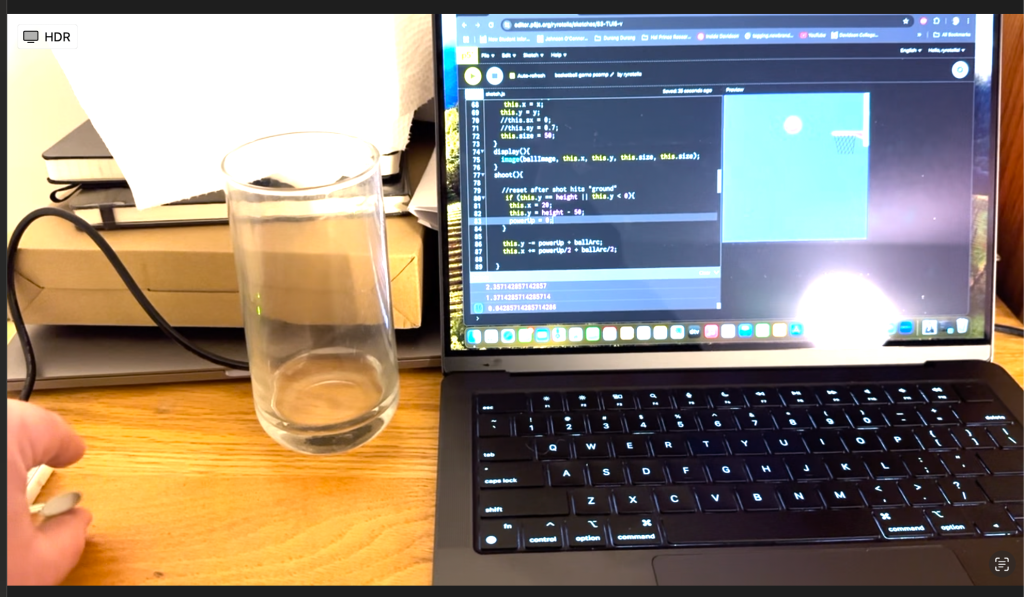
Instead, I thought more, which took more time. Eventually, I wound up wanting to still use an FSR but for a basketball game. The basketball will fly up on screen with whatever force a user presses the FSR with. I like that this makes a basketball video game feel more physical like the actual sport, even if it is a little gesture.
It’s not perfect. I need to build upon the P5 code more to give the basketball a falling arc and see if it goes in the hoop or not. I would like to build more graphics for success or failure as well as color changes and stats, but for now, here is my prototype.
p5 code

// variable to hold an instance of the p5.webserial library:
const serial = new p5.WebSerial();

let hoop;
let r, g, b;
let ballImage;
let bBall;

let ballArc = 10;
let powerUp;

// HTML button object:
let portButton;
let inData; // for incoming serial data
let outData; // for outgoing data

function preload(){
  hoop = loadImage("basketball-hoop-clipart-md.png");
  ballImage = loadImage("Basketball.png");
}

function setup() {
  createCanvas(400, 400);
  r = 150;
  g = 150;
  b = 250;

   // check to see if serial is available:
  if (!navigator.serial) {
    alert("WebSerial is not supported in this browser. Try Chrome or MS Edge.");
  }
  // if serial is available, add connect/disconnect listeners:
  navigator.serial.addEventListener("connect", portConnect);
  navigator.serial.addEventListener("disconnect", portDisconnect);
  // check for any ports that are available:
  serial.getPorts();
  // if there's no port chosen, choose one:
  serial.on("noport", makePortButton);
  // open whatever port is available:
  serial.on("portavailable", openPort);
  // handle serial errors:
  serial.on("requesterror", portError);
  // handle any incoming serial data:
  serial.on("data", serialEvent);
  serial.on("close", makePortButton);
  bBall = new Ball(0, height-50);

}

function draw() {
  background(r, g, b);
  drawHoop();
  bBall.display();
  if (powerUp){
  console.log(powerUp);

  bBall.shoot();
  }

}

 function drawHoop(){
    image(hoop, 300, 0, 2/4*width, height);
 }

class Ball {
  constructor(x, y){
     this.x = x;
    this.y = y;
    //this.sx = 0;
    //this.sy = 0.7;
    this.size = 50;
  }
  display(){
    image(ballImage, this.x, this.y, this.size, this.size);
  }
  shoot(){

    //reset after shot hits "ground"
     if (this.y == height || this.y < 0){
      this.x = 20;
      this.y = height - 50;
      powerUp = 0;
    }

    this.y -= powerUp + ballArc;
    this.x += powerUp/2 + ballArc/2;
    this.y += 0.7;

  }

}

// if there's no port selected,
// make a port select button appear:
function makePortButton() {
  // create and position a port chooser button:
  portButton = createButton("choose port");
  portButton.position(10, 10);
  // give the port button a mousepressed handler:
  portButton.mousePressed(choosePort);
}

// make the port selector window appear:
function choosePort() {
  serial.requestPort();
}

// open the selected port, and make the port
// button invisible:
function openPort() {
  // wait for the serial.open promise to return,
  // then call the initiateSerial function
  serial.open().then(initiateSerial);

  // once the port opens, let the user know:
  function initiateSerial() {
    console.log("port open");
    //send byte to start microcontroller sending
    serial.print("x");
  }
  // hide the port button once a port is chosen:
  if (portButton) portButton.hide();
}

// read any incoming data as a byte:
function serialEvent() {
  //read string from serial port until
  //carriage return - /r - and newline - /n
  var inString = serial.readStringUntil("\r\n");

  //check to see if string exists
  if (inString) {
    if (inString != "hello") {

        powerUp = map(inString, 50, 400, 0, 15);
        //send a byte back to prompt for more data
        serial.print('x');


    }
  }
}

// pop up an alert if there's a port error:
function portError(err) {
  alert("Serial port error: " + err);
}

// try to connect if a new serial port
// gets added (i.e. plugged in via USB):
function portConnect() {
  console.log("port connected");
  serial.getPorts();
}

// if a port is disconnected:
function portDisconnect() {
  serial.close();
  console.log("port disconnected");
}
Arduino code

int threshold = 50;

void setup() {
  // put your setup code here, to run once:
  Serial.begin(9600);
  while (Serial.available() <= 0){
    Serial.println("hello");  //send starting message
    delay(300); // wait 1/3 second
  }
}

void loop() {
  // put your main code here, to run repeatedly:

  if (Serial.available() > 0){
    //read  analog sensor
    int sensorValue = analogRead(A0);
    if (sensorValue > threshold){
      Serial.println(sensorValue);
    }
  }


}
 Ryan Rotella
Leave a comment